Many advertisers face the same problem:
Facebook profiles getting restricted repeatedly
Ad accounts being disabled after login
Multiple accounts managed from the same device or network environment
No idea how to properly configure a fingerprint browser
In many cases, the problem is not only the account itself — but also the environment used to access and manage these assets.
A stable advertising setup starts with a clean and isolated browser environment.
This guide explains how to properly configure your Facebook profile and Business Manager setup.
Step 1: Set Up Your Fingerprint Browser Environment (Morelogin)
Before accessing any Facebook assets, create a separate browser environment using a fingerprint browser. Keep all future operations inside the same environment. For this guide, we use MoreLogin.
Process:
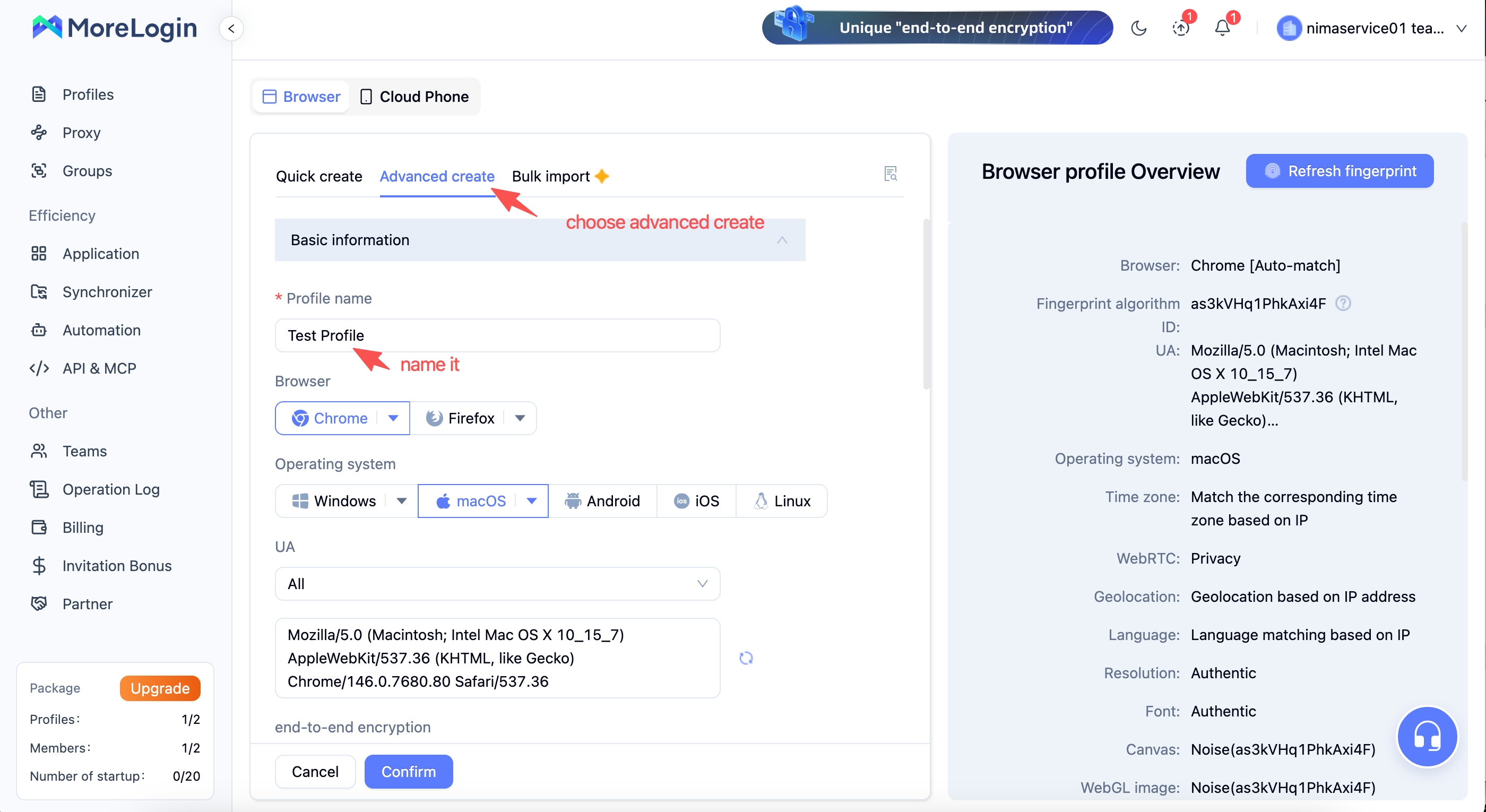
1.1 Create a new browser profile
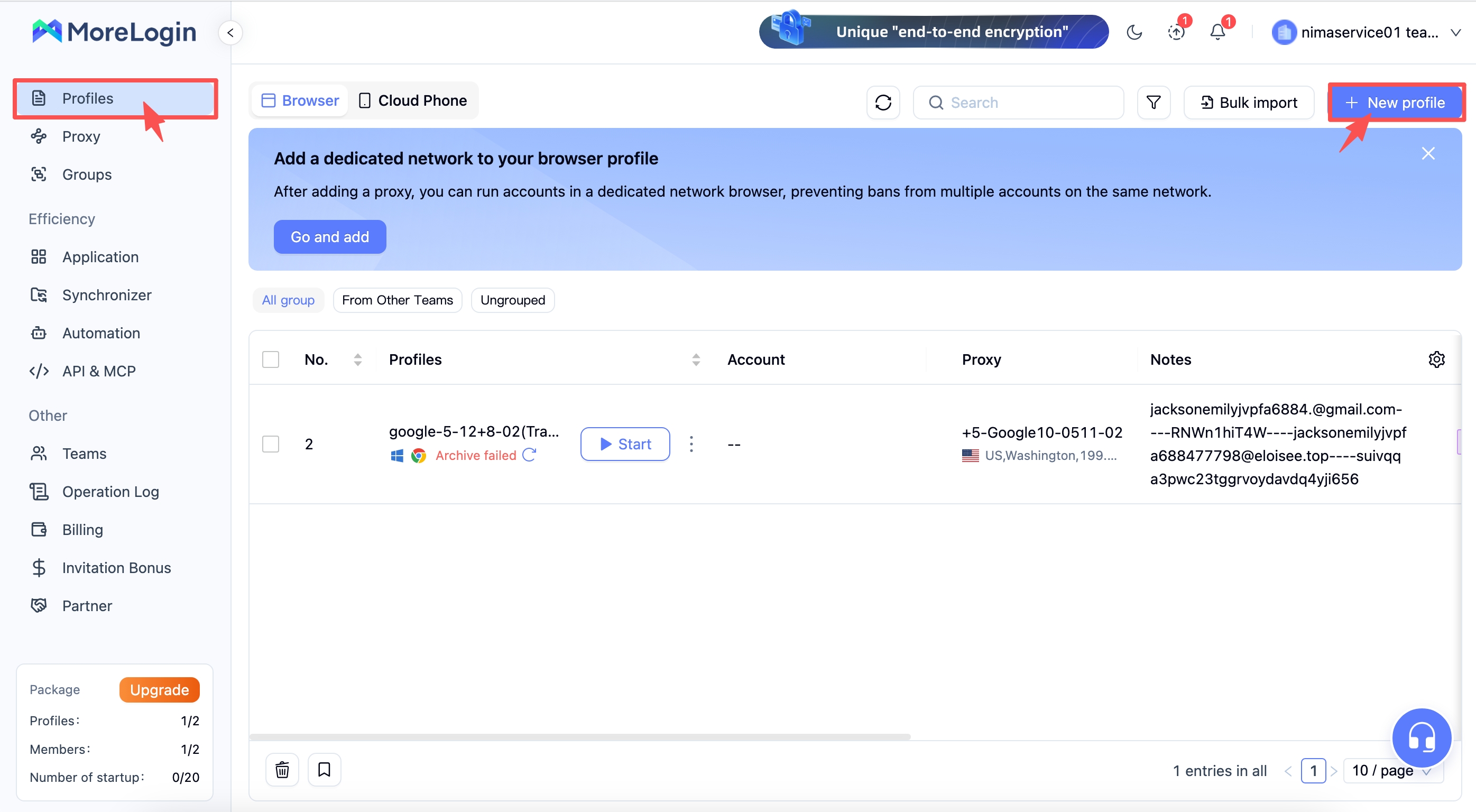
1.2 Assign a dedicated fingerprint environment
Choose “Advanced Create”, name the profile, and keep the fingerprint settings consistent for future access.
1.3 Use a consistent IP/network connection
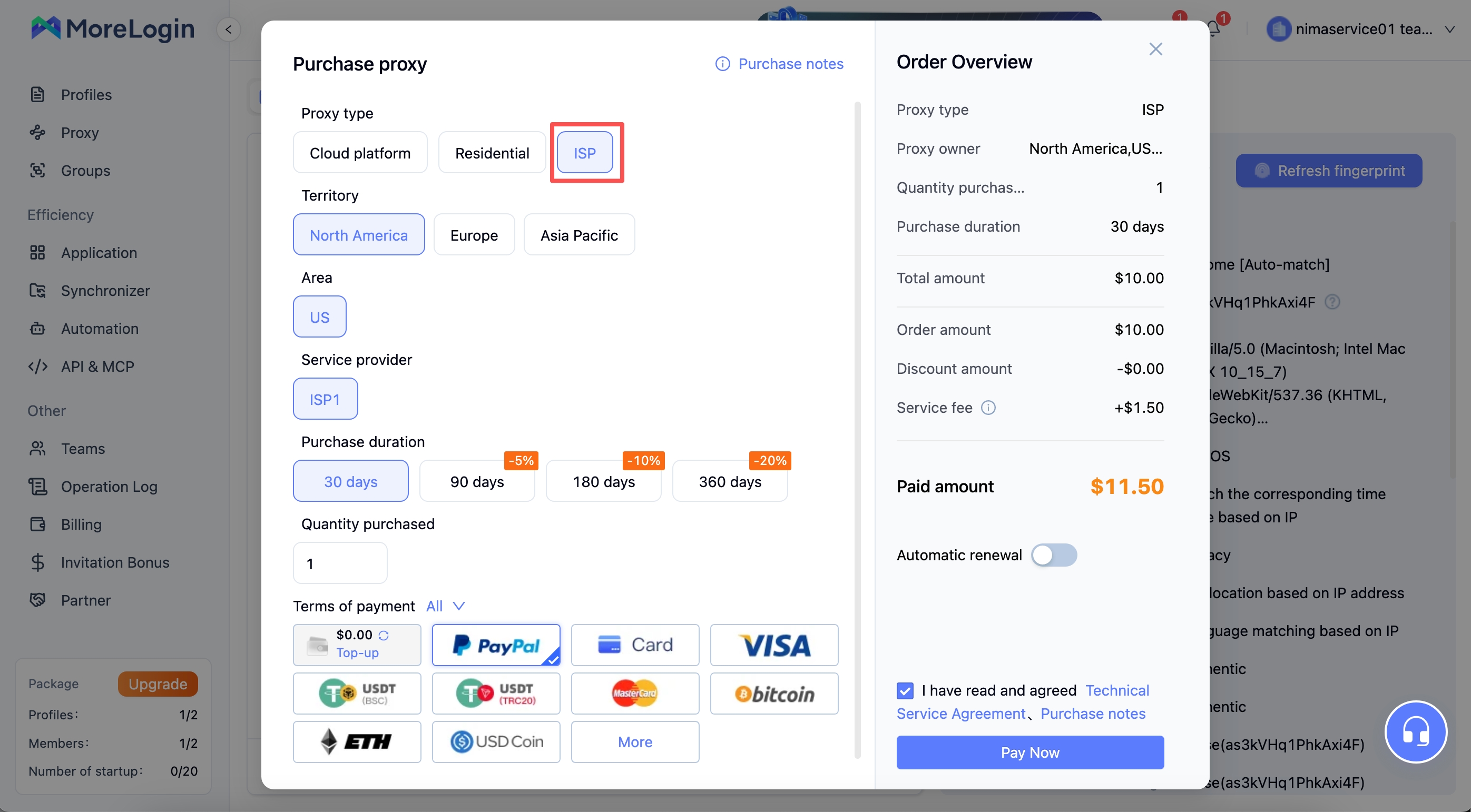
1.3.1 If you don't have a dedicated static IP, purchase an ISP proxy and assign it to this browser profile.
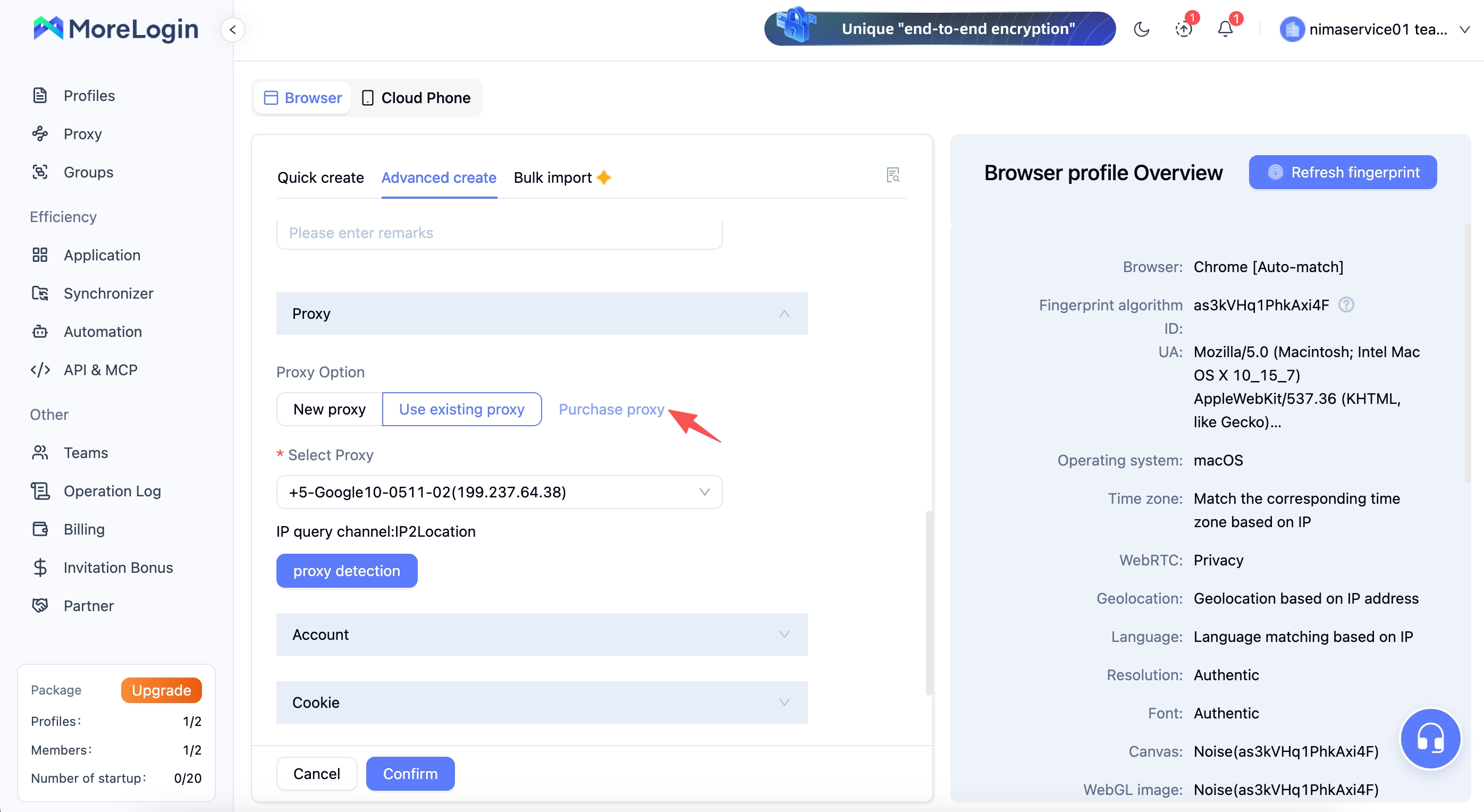
Select “ISP” as the proxy type and choose the region based on your target Facebook account location.
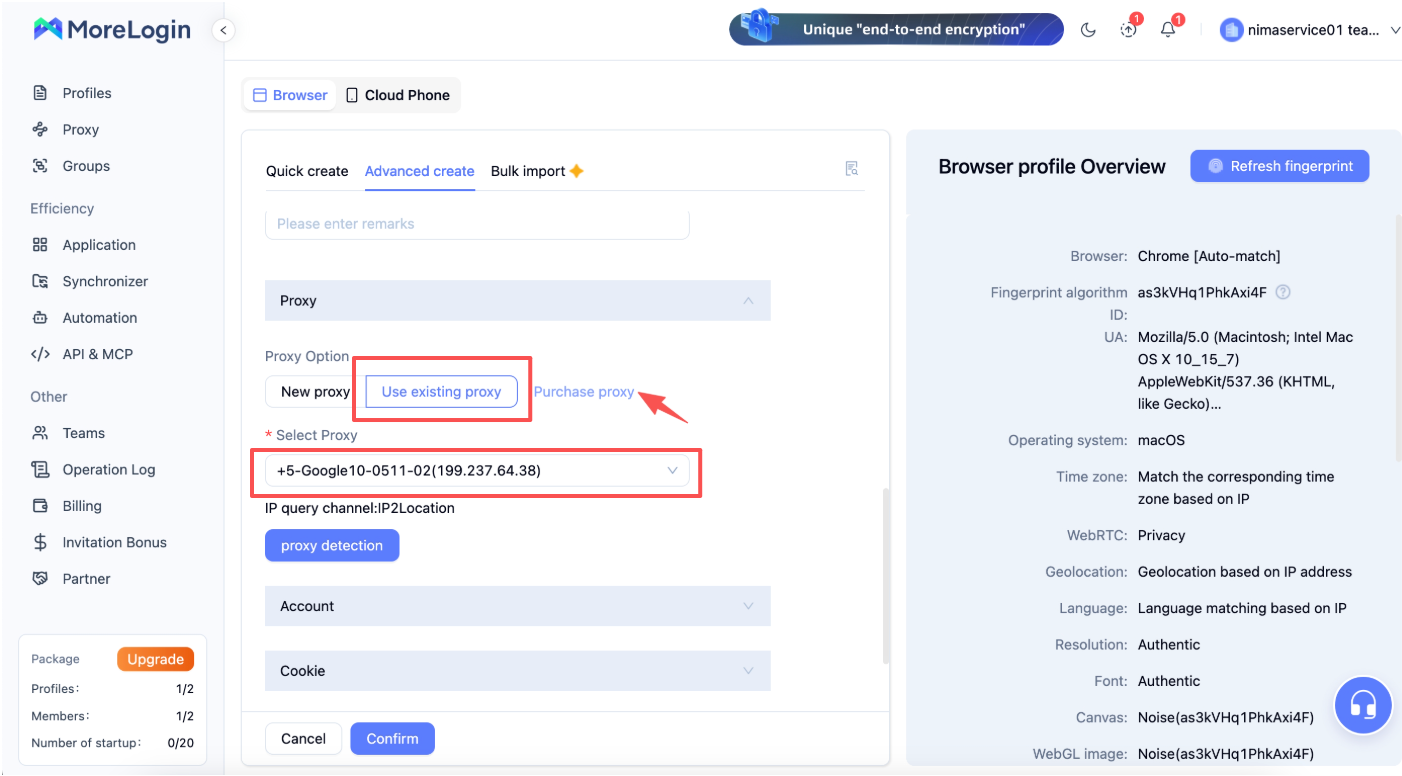
1.3.2 Select “Use existing proxy” and select the assigned static IP from the list.
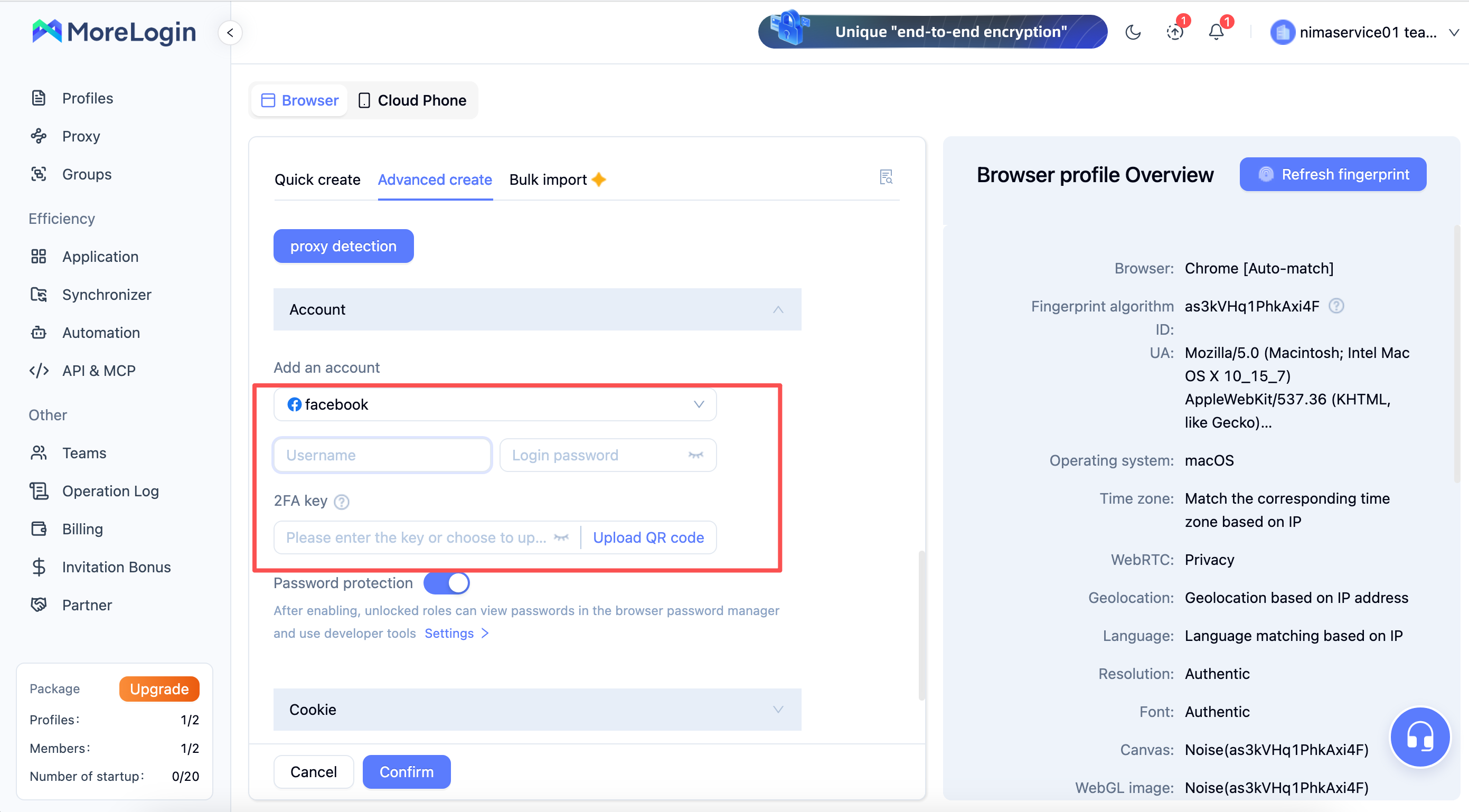
1.4 Add your Facebook Personal Profile information
Enter the provided Facebook Profile ID, password, and 2FA key to connect the Facebook account with this browser profile.
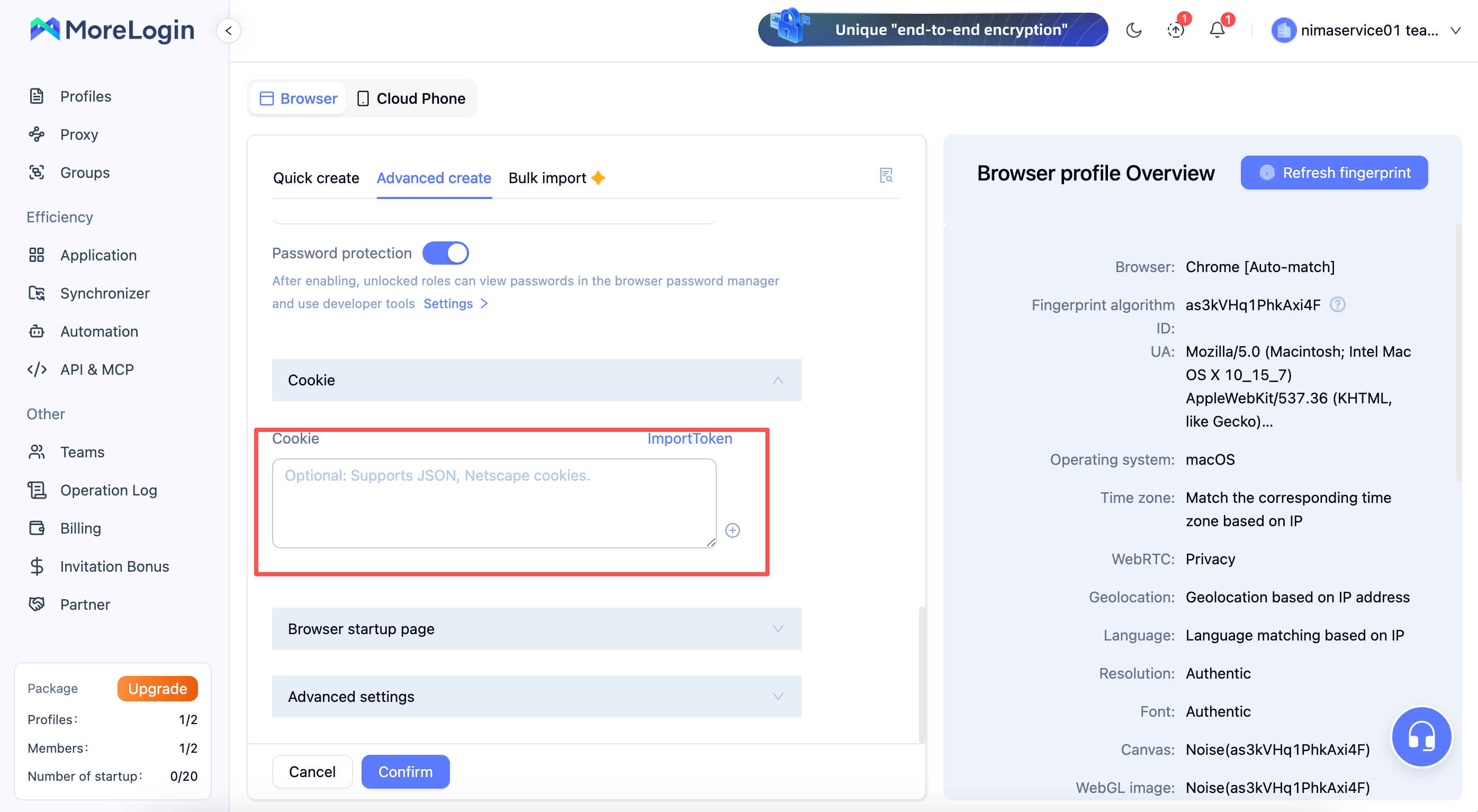
1.6 Enter the provided Cookie
Step 2: Login to Your Facebook Profile
After your MoreLogin environment is ready, you can log in using the provided Facebook profile information. After successful login, keep using the same browser environment for future access.
The package includes:
Facebook Profile ID & Password
2FA Authentication Code
Process:
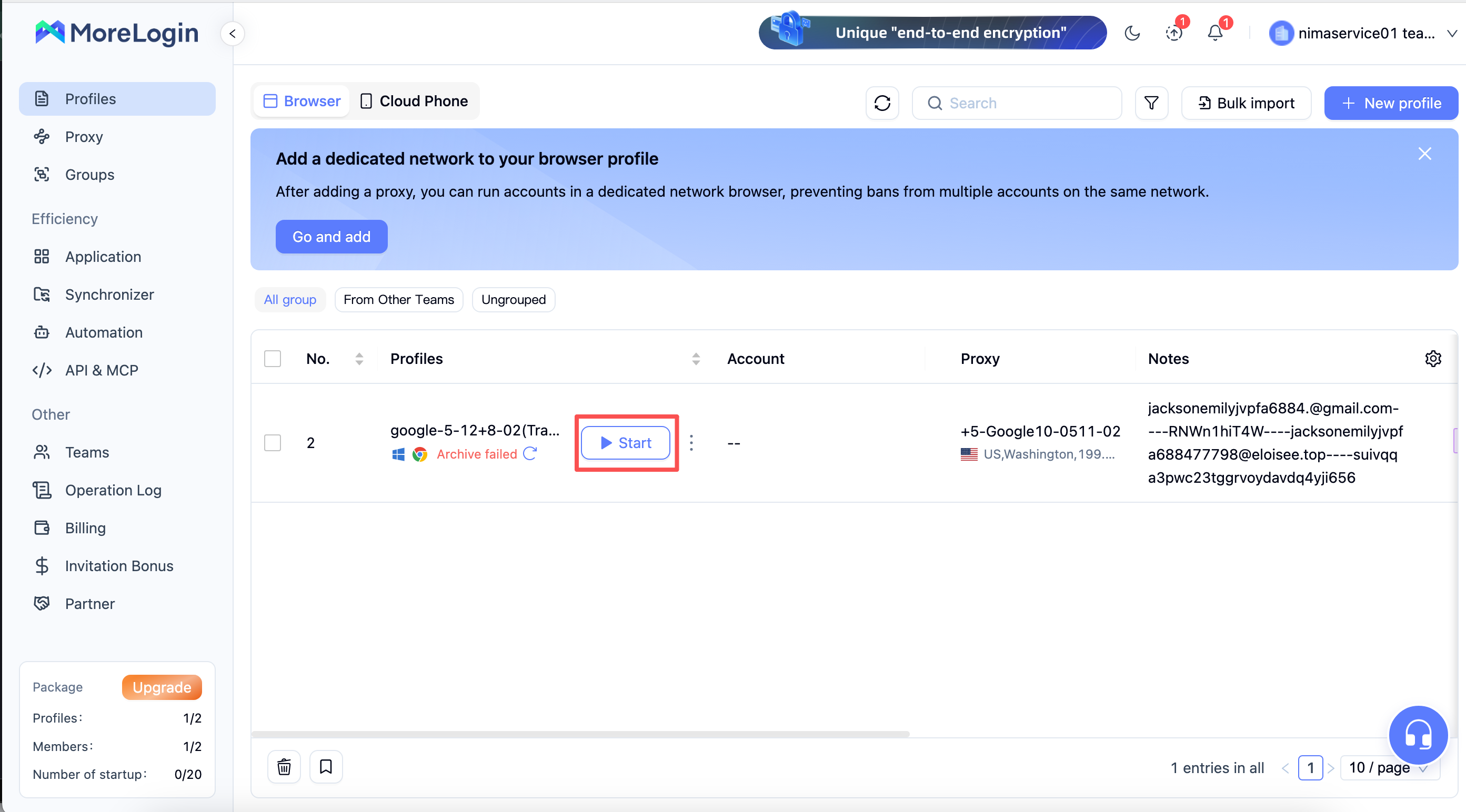
Click “Start” to open the browser. The Facebook login page will open automatically. If it does not open, manually navigate to Facebook and log in using the provided Facebook ID and password.
Step 3: Connect Meta Business Portfolio (BM)
Once the Facebook profile is ready, the next step is connecting the Business Manager.
You will receive:
Email account & password
Backup email access
Meta Business Portfolio (BM) invitation
Process:
Login to the provided email account
Find the Meta Business invitation email
Accept the invitation
Confirm that the Business Portfolio is connected to your Facebook profile
Note:
If email login requires a verification code sent to the backup email, open the provided link (https://inboxes.com/), enter the backup email address, and retrieve the verification code to complete the login process.
Available Products
PixelSync provides advertising infrastructure solutions for advertisers and agencies:
Facebook Profile
Includes:
✓ Facebook Profile login details
✓ Email account & password
✓ Email verification access
✓ 2FA authentication code
Facebook Business Portfolio(BM)
Includes:
✓ Business Manager access
✓ Connection through provided profile
✓ Ready-to-use advertising asset environment
Who is this solution for?
This setup is designed for advertisers who need a more organized way to manage Facebook assets, including:
Media Buyers
Managing multiple client accounts and needing separate Facebook profiles and Business Managers for different projects.
Freelancers & Marketing Agencies
Working with multiple clients and requiring a cleaner asset management structure.
E-commerce Brand Owners
Running Meta Ads and looking for a more stable setup to manage advertising operations.
Advertisers Experiencing Repeated Account Restrictions
If your Facebook profiles or ad accounts have been restricted multiple times, reviewing your login environment and asset structure is an important first step.
If you need to build a better advertising setup, feel free to contact our team: PixelSync